
VPN to KEMEK LT
To connectVPN to KEMEK LT.
1. For the VPN to start work, the user must first be assigned the appropriate security access group “Kemek LithuaniaVPN” LANon pleasethe useAD server.

2. After that install FortiClient VPN program:program. Link: FortiClientVPNInstaller.exe
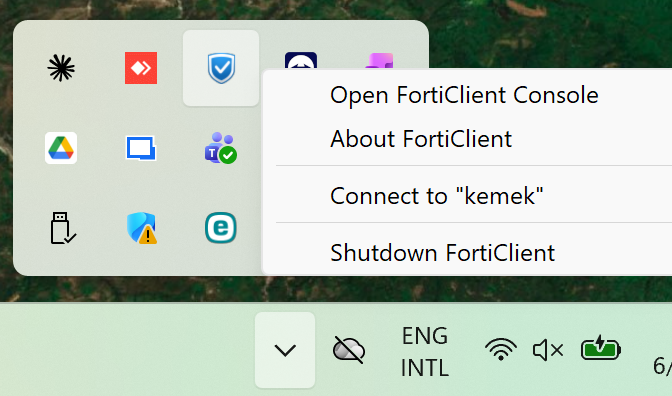
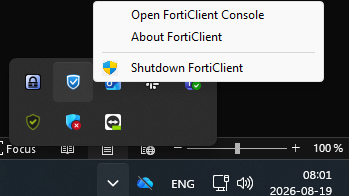
3. After installation You will find blue icon in windows tray. Right mouse button will open menu. Next choose "Open FortiClient Console"
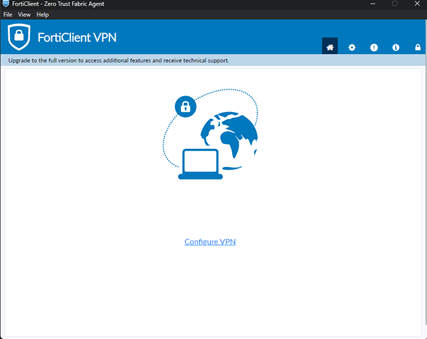
Create4. newSelect ConnectionConfigure andVPN.
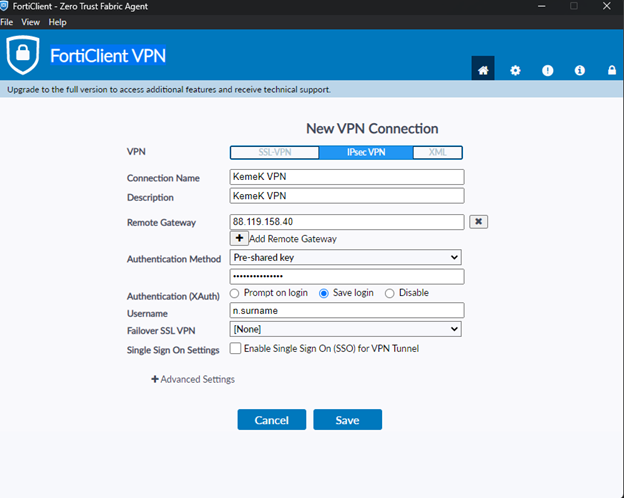
4. New configuration data, fill data:same as in pictures:
VPN:
- Select VPN connection type: IPSec
VPNVPN. - Remote Gateway: 88.119.158.
4040. - Authentication Method: Pre-shared key (preshared key You will ask an Administrator to provide).
- Authentication (XAuth)
:select: Save login. - Enter username: (same as to login to computer or server like “N.Surname”).
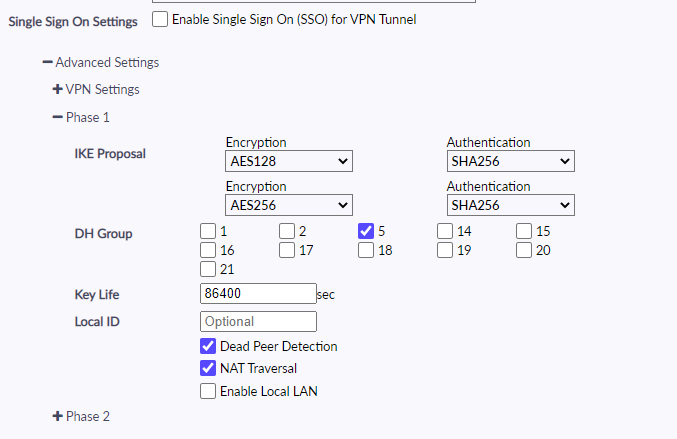
Below this window press:item: "+ Advanced Settings"Settings”, you "will see more selections.

Correct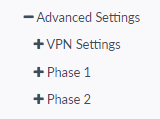
7. Copy all datasettings aslike shown below:in pictures (Phase1 and Phase2).
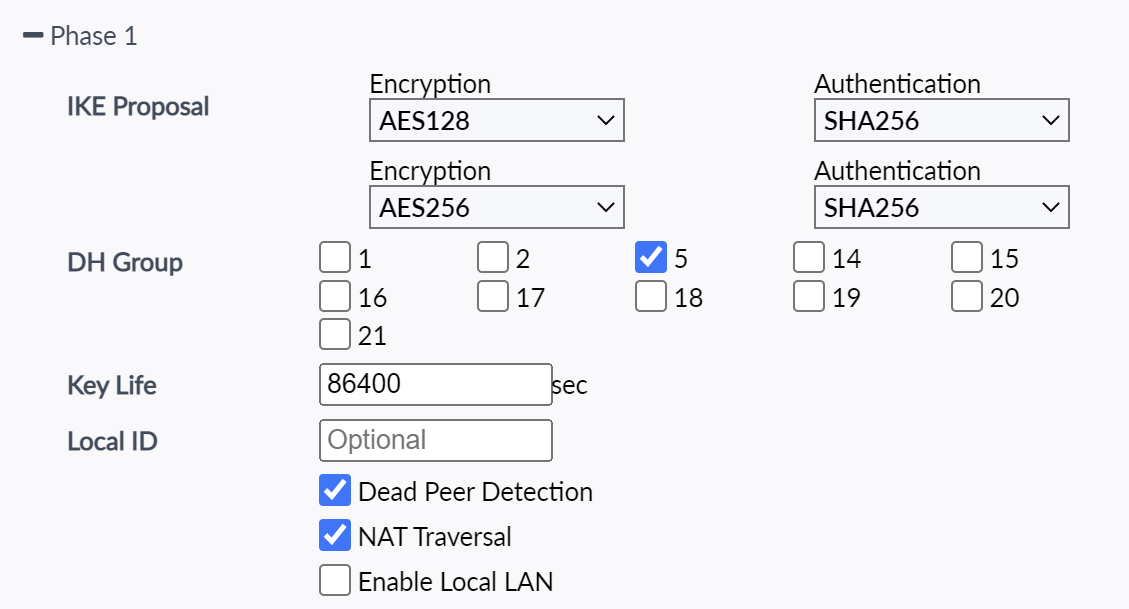
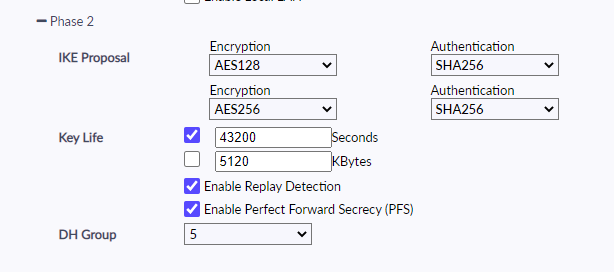
8. Press "Save".Save” button.
Next fill
9. After that enter password: (same as to login to computer or server) and press "Connect". button.
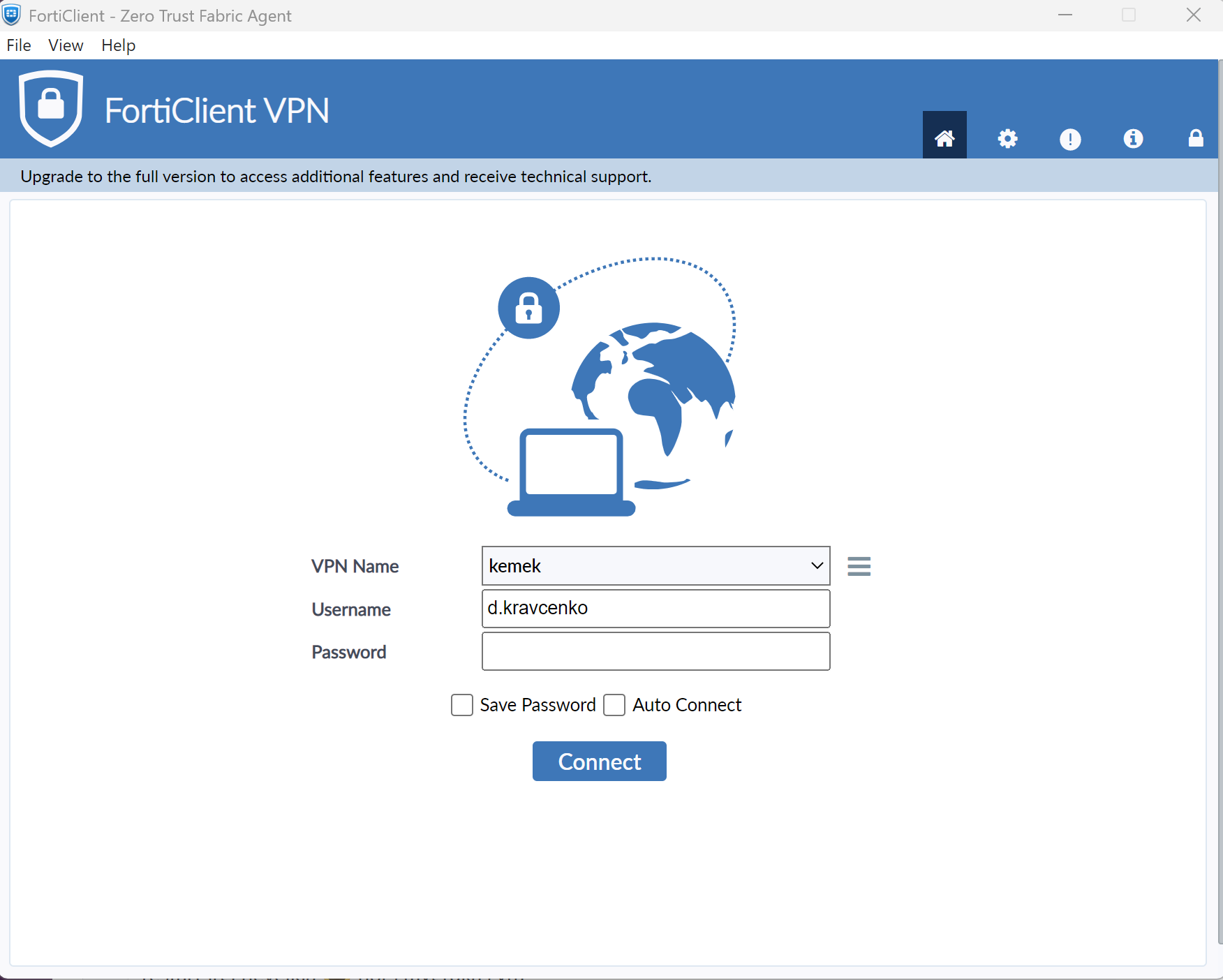
InIf successall Youconfigurations are done correctly, you will see:see a similar image.
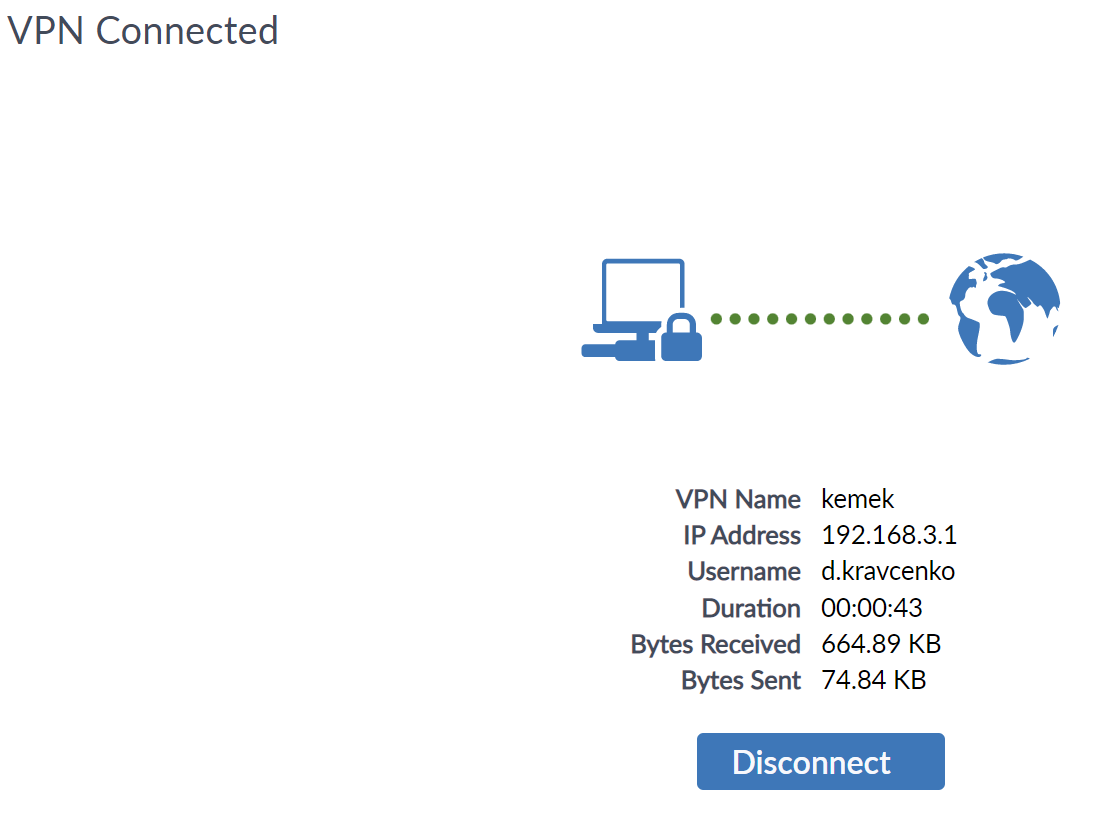
After job is done press “Disconnect” button.