Vartotojo Kūrimas
1. To create a user first click on the cog icon in the top right of the screen, and in the dropdown select „Users“: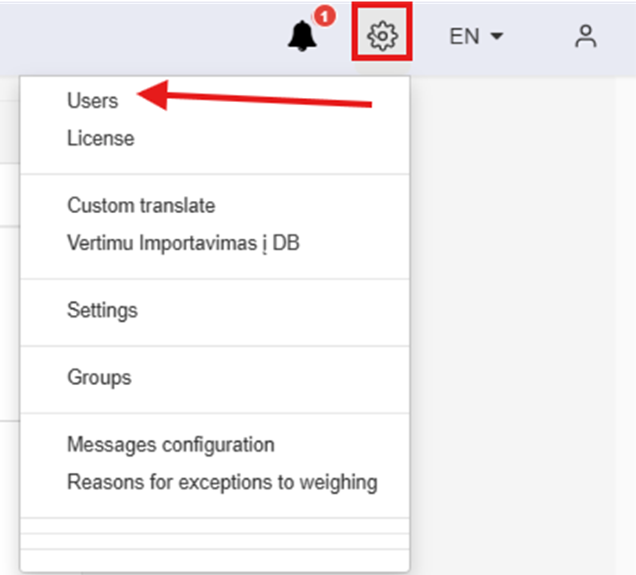
2. In the open window click on the „Create New User“ button: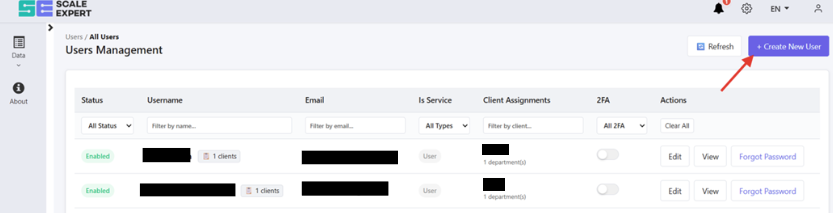
3. Enter the Username and Email for the new user account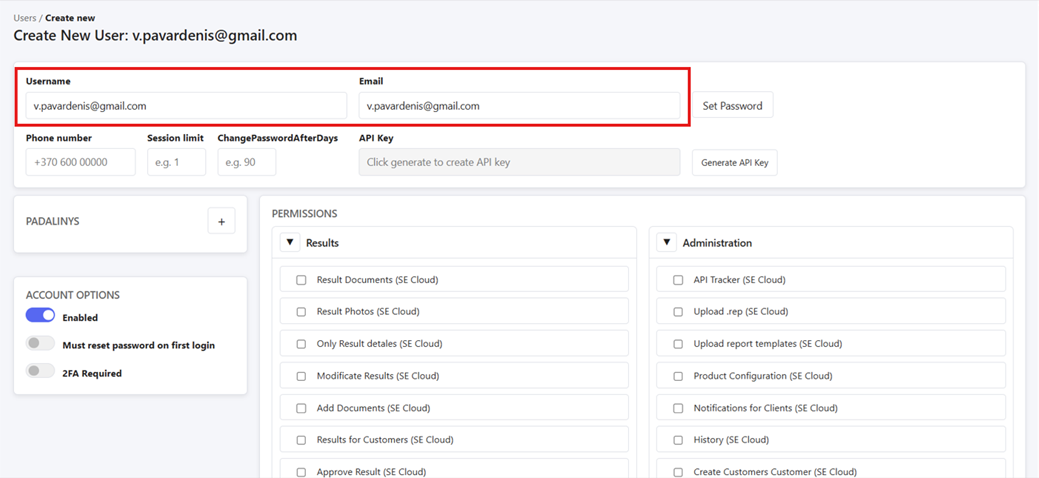
4. After entering the information, in the account options turn on password reset on first login, and click on „Set Password“: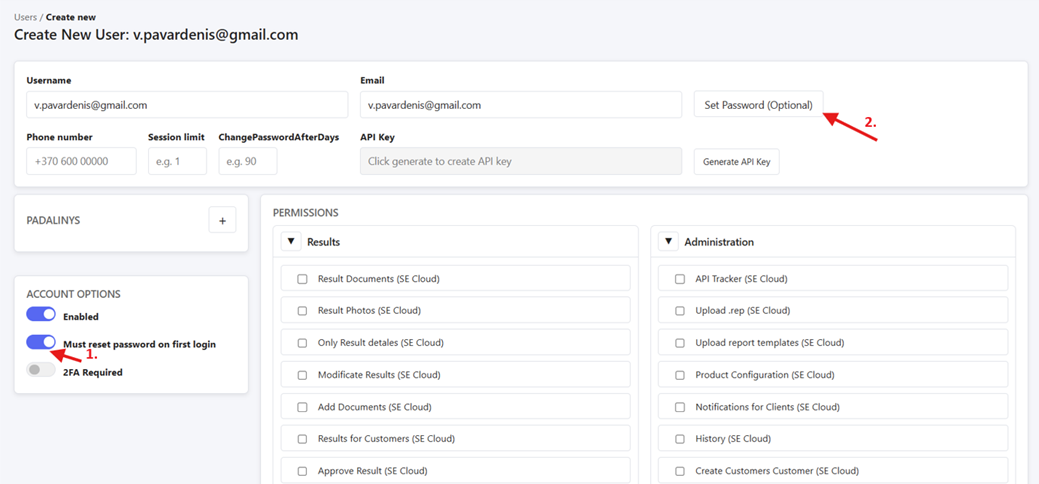
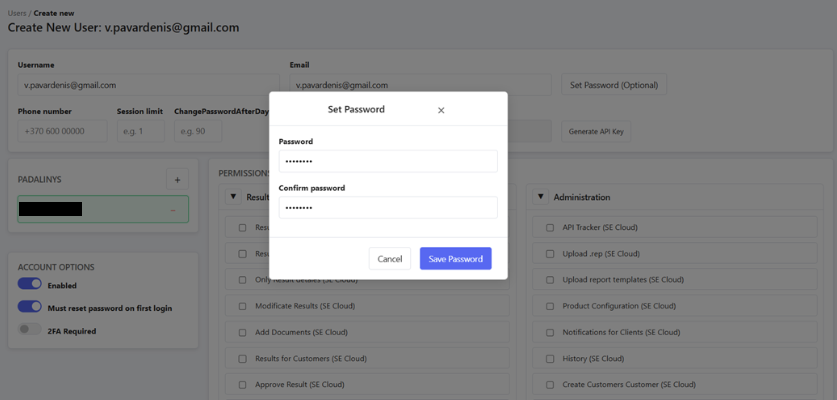
5. Then set a temporary password for the user to log in for the first time in the window that opened:
6. After that, select a department in the departments section, by clicking the plus sign and then entering the information in the window that pops up.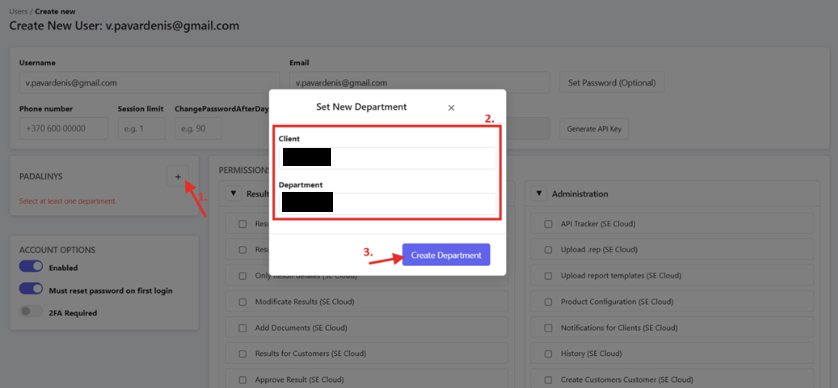
7. After the department is selected and password set, you should see the changes in the department section and the button previously used to set the password saying „Change Password“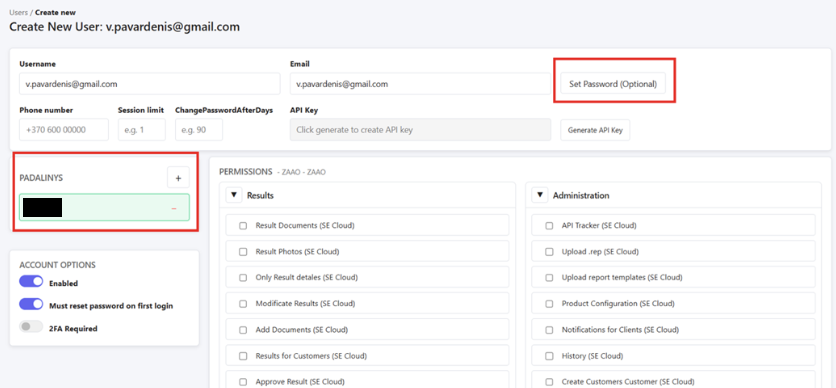
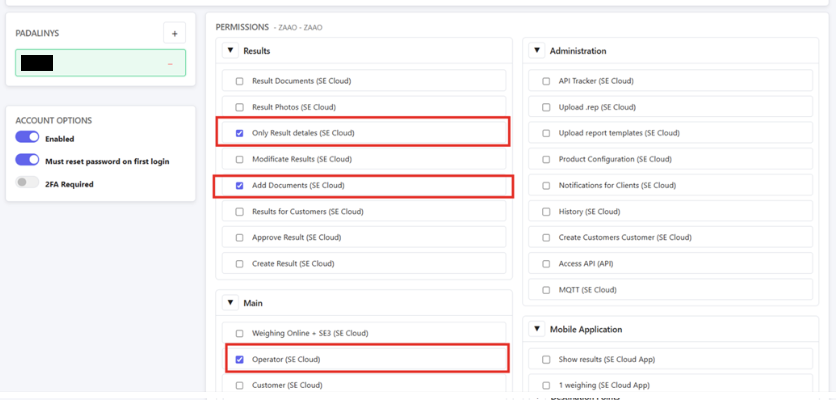
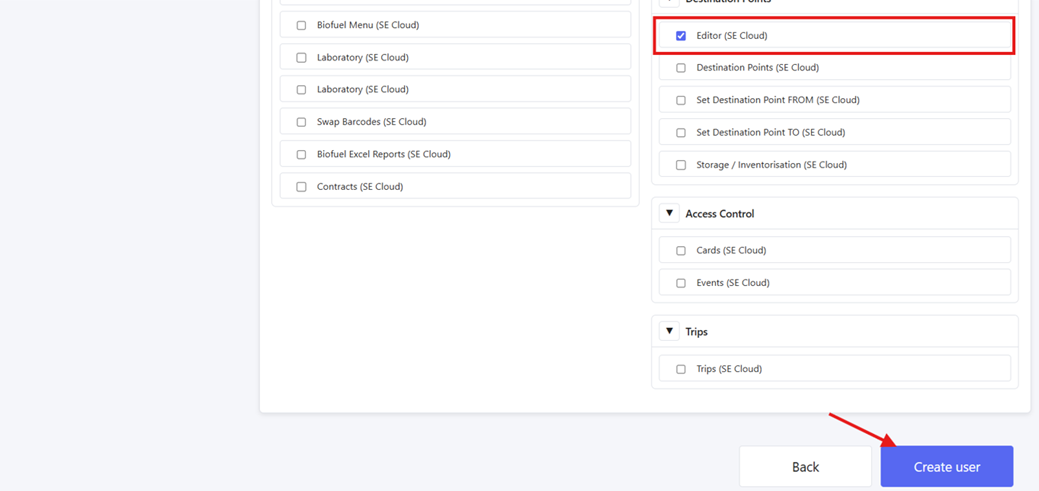
8. Then select the permissions for the user acount as in the following screenshots, afterwards finishing creation by clicking on „Create user“ at the bottom: