EN
Create, Edit, Copy and Delete contract.
Create new a contract.
-
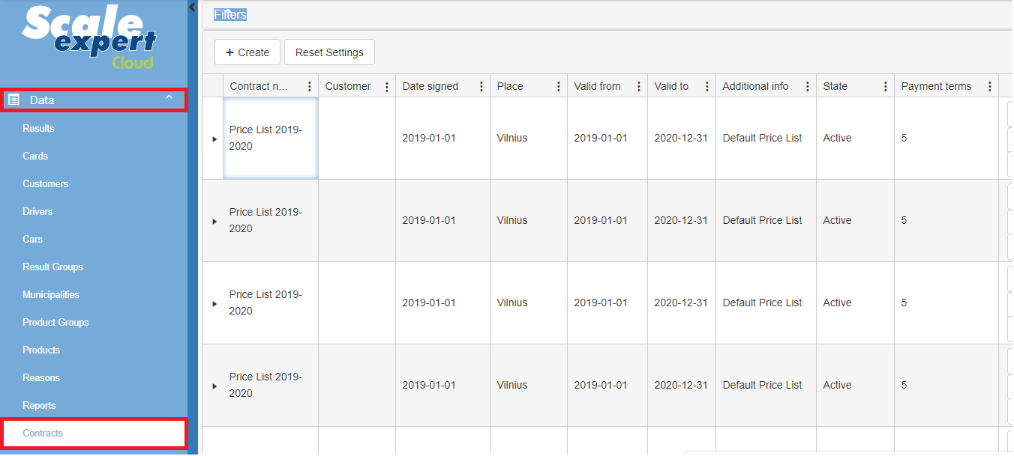
Expand the "Data" list in the menu, to select the “Contracts”.
-
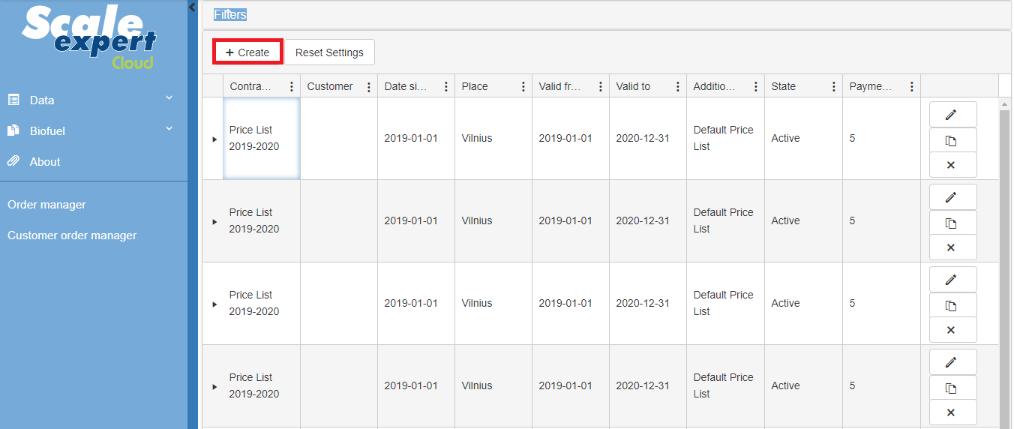
Click the "Create" button.
-
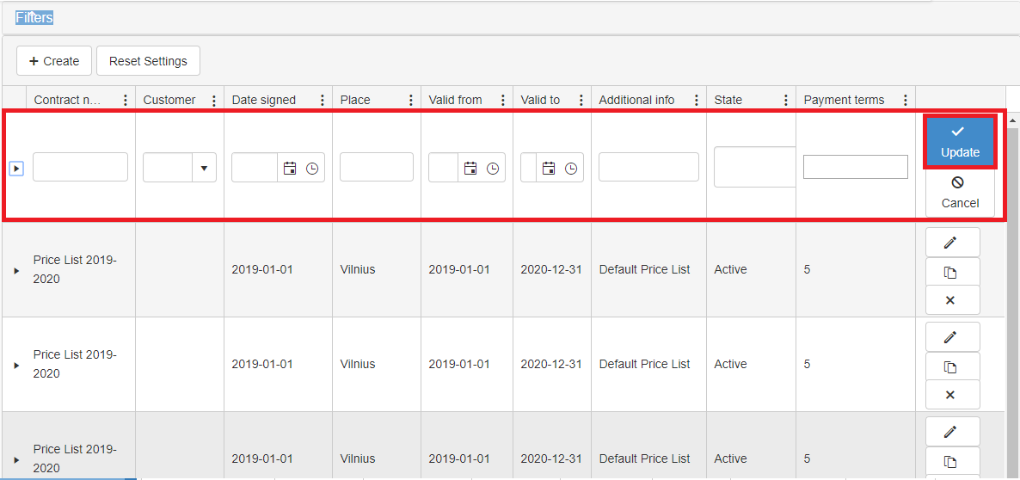
Enter your data and click on the “Update” button.
Edit record.
-
Click the pencil icon on the right, in the same row you want to edit.
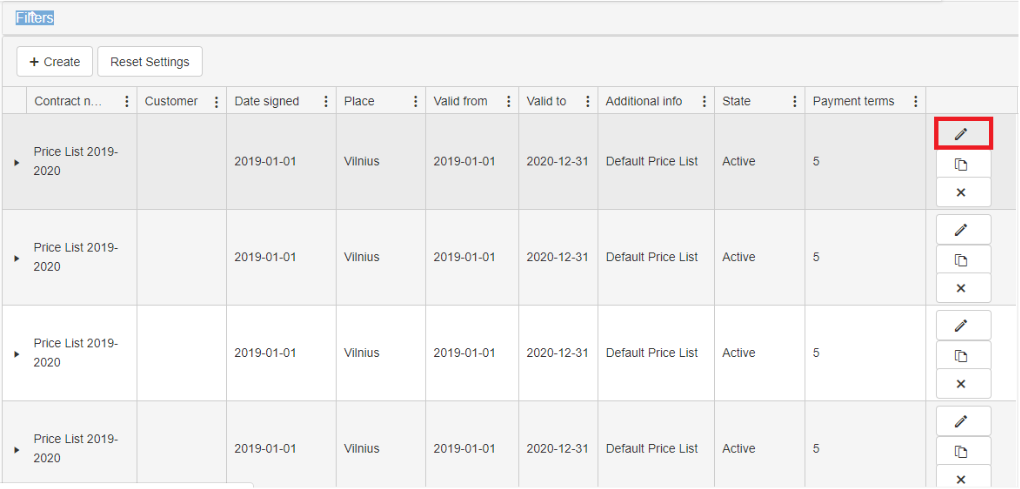
-
After the entry editing, click the “Update” button.
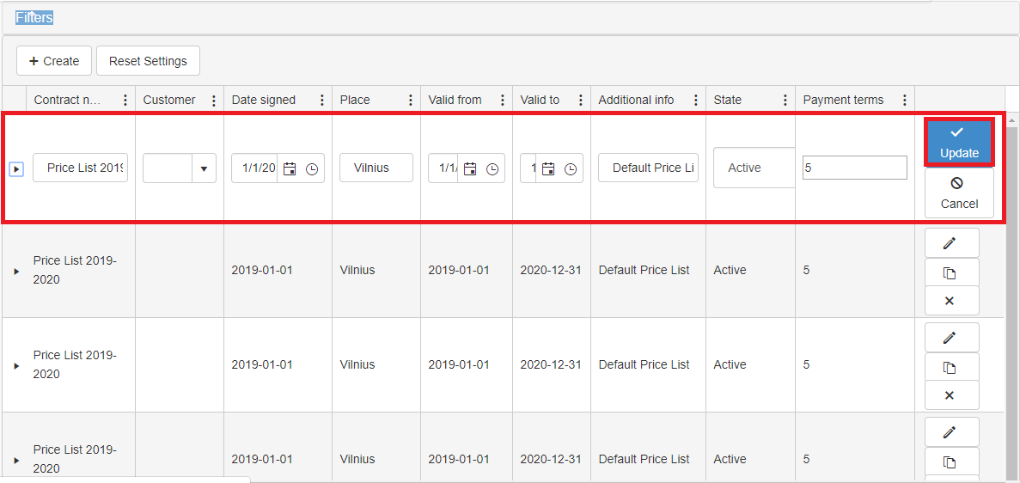
Copy of record.
-
Click the icon, on the right, second from the top in the same row you want to copy.
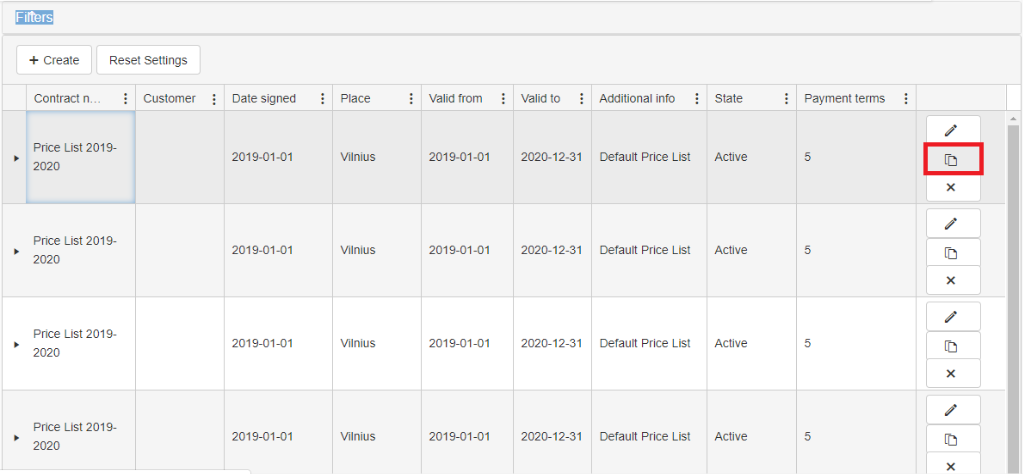
-
Enter the amount and click the button "Submit".
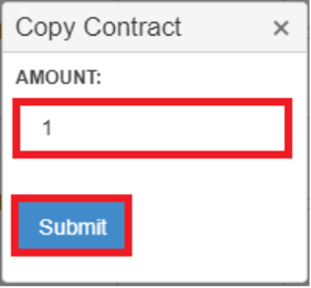
Delete a contract.
-
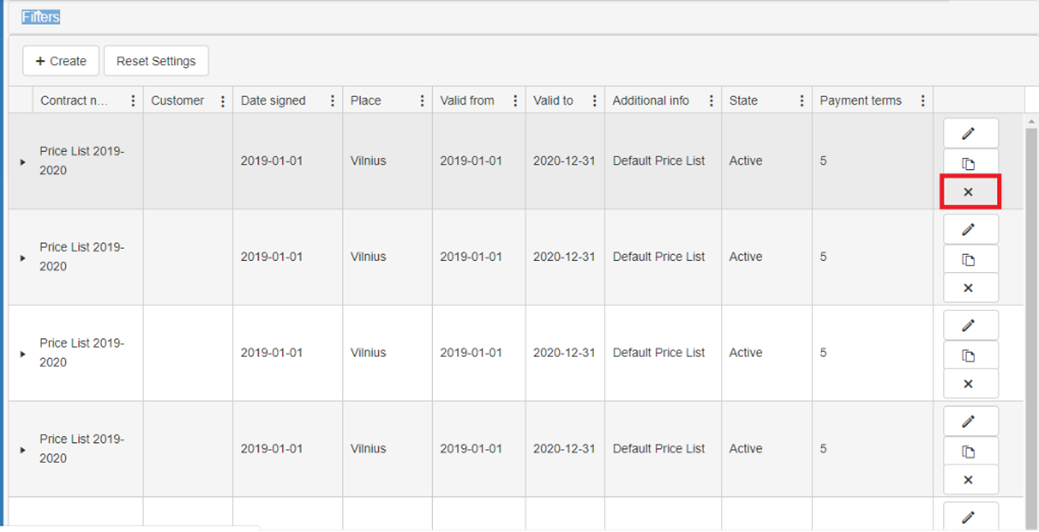
Click the icon, on the right, third from the top in the same row you want to delete.
-
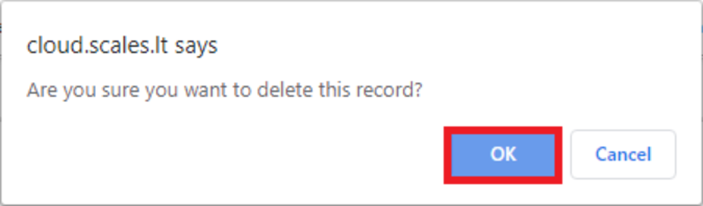
Click “OK” to confirm the deletion of the selected row.
Column adjustment and configuration
Add a new column.
-
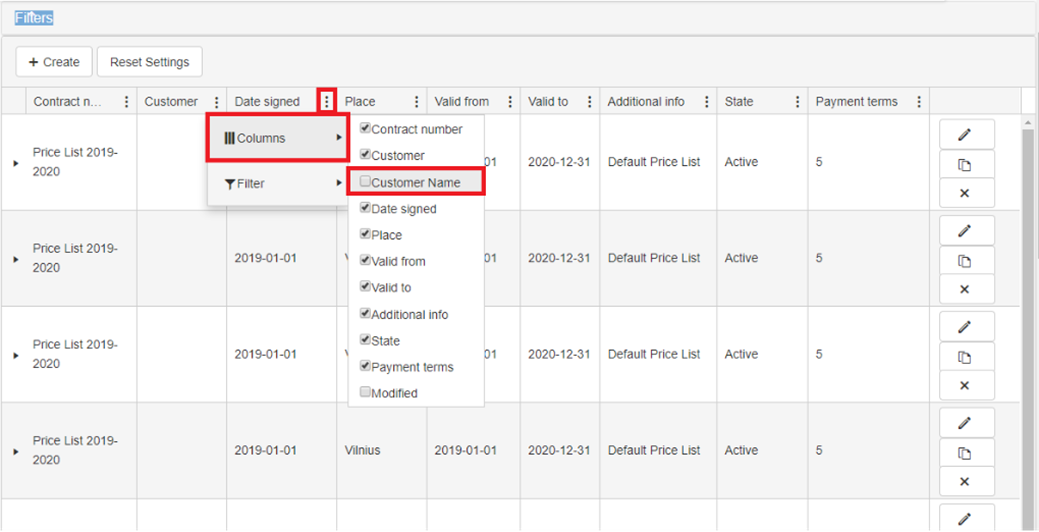
In any column, press the button with three dots . From the drop-down list, select the "column" section and choose which column you want to add.
Change columns placement.
-
Select the column you want to move and drag to the desired place.

Change column width.
-
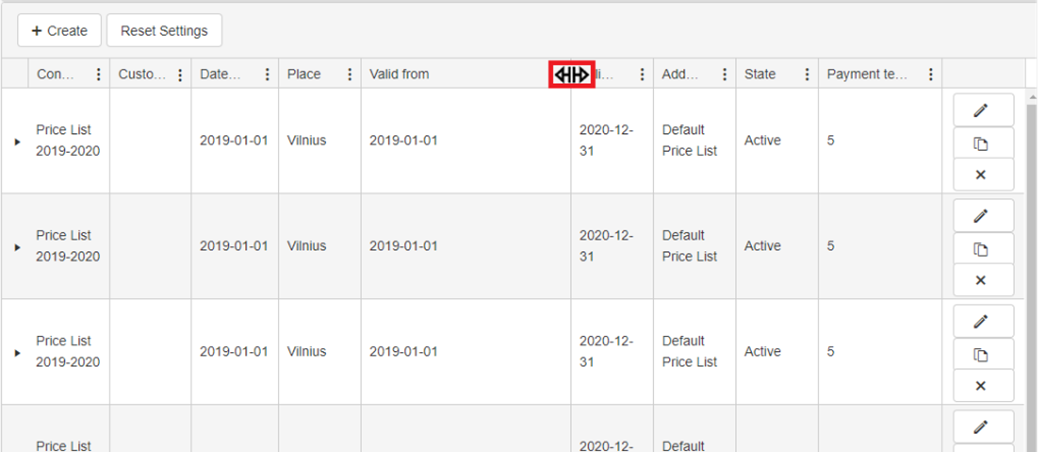
Place the cursor between the columns and, when the cursor changes the icon, drag the cursor left or right to adjust the column width.
Filtering and sorting.
Set Column Filter.
-
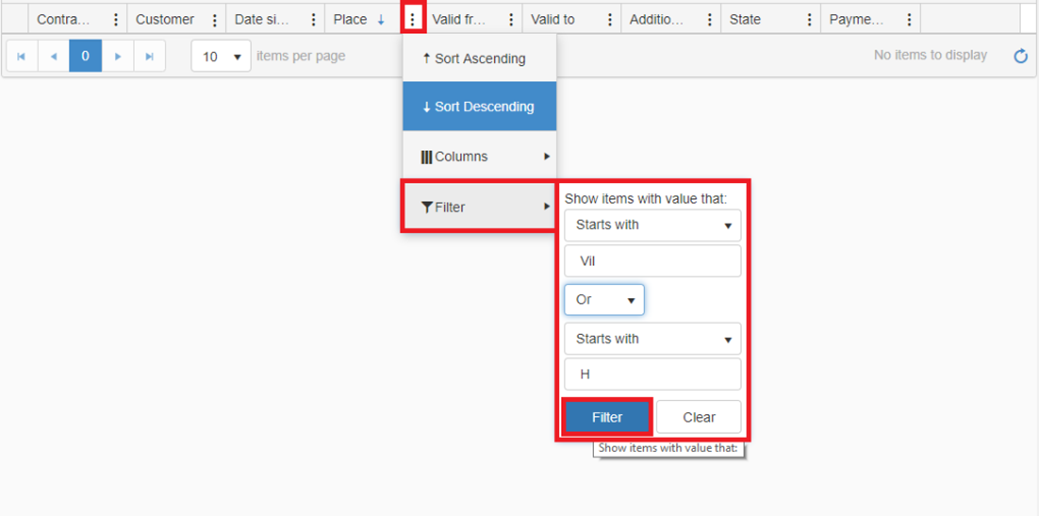
In the column, you want to filter, press the button with three dots.
 From the drop-down list, select the "Filter" section. Set filter settings and click the “Filter ‘button.
Set Sort.
-
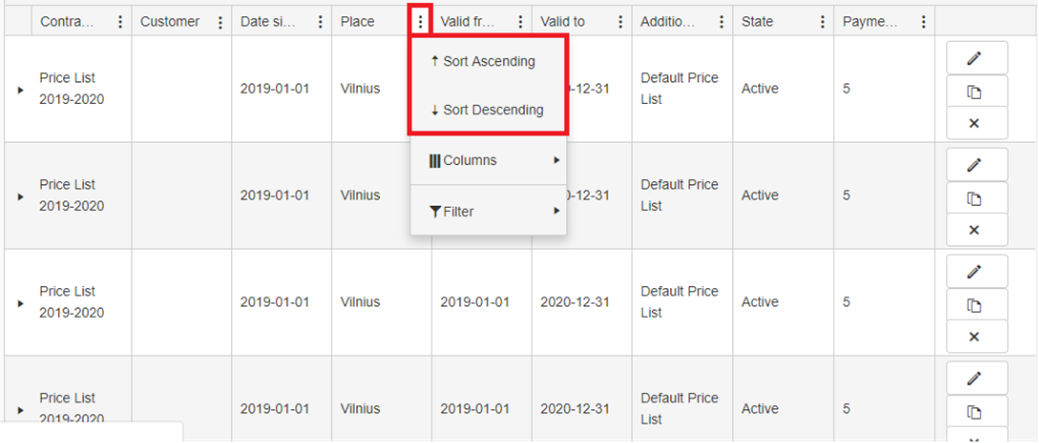
In the column you want to sort, press the button with three dots . From the drop-down list, select the “Sort Ascending” or “Sort Descending”.
 Set Filter.
-
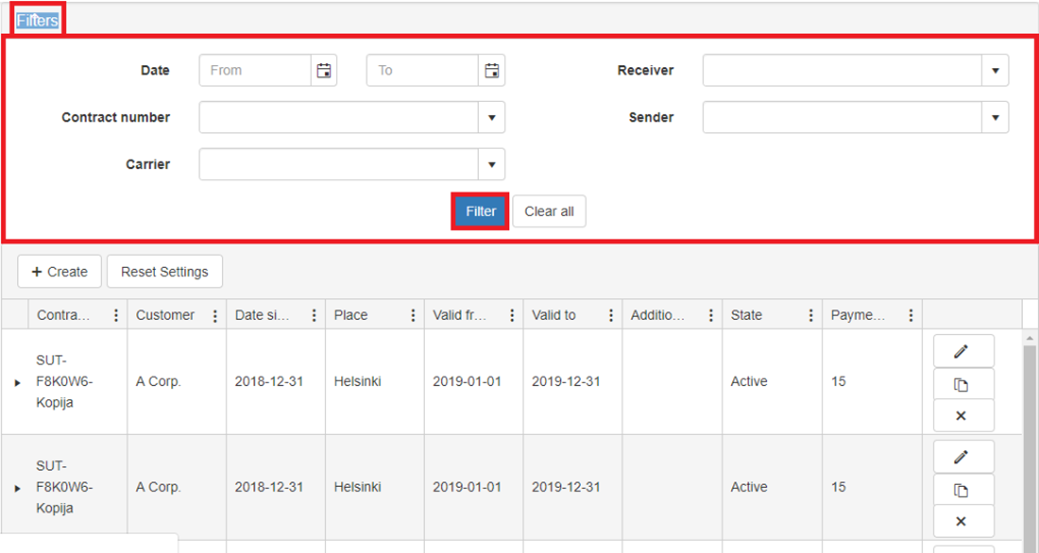
Click on the text "Filters", set filters and click the button “Filter”.